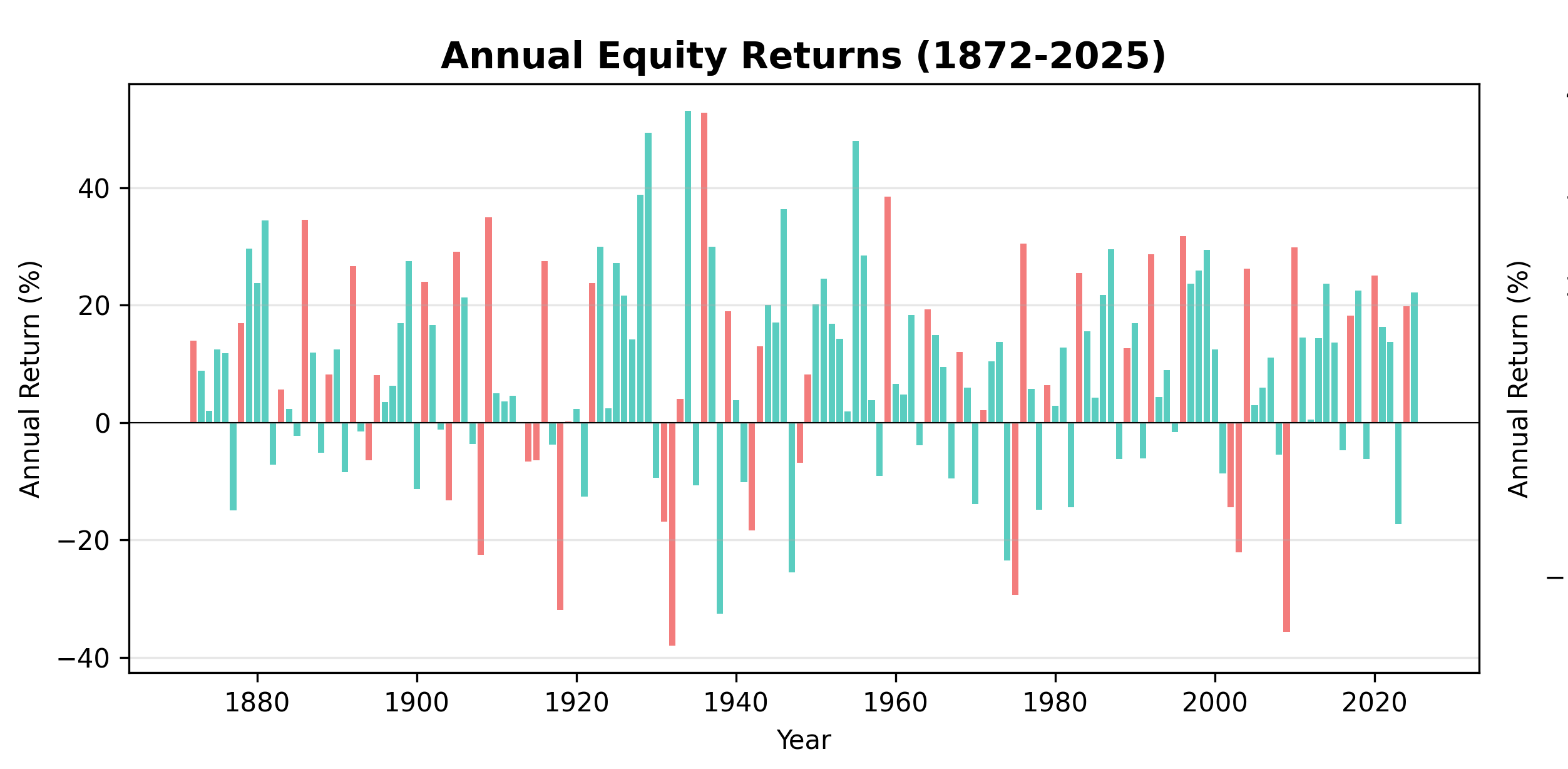
Prerequisites: You'll need a Bellavia Premium account to upload custom datasets. If you don't have one yet, you can upgrade from your Settings page.
Step 1: Download the Bellavia Template
Before working with external data, grab Bellavia's CSV template to understand the required format:
- Log into your Bellavia account
- Navigate to Settings from the top menu
- Scroll to the Data Management section
- Click Download Sample CSV Template
This template shows exactly how Bellavia expects your data to be structured.
Step 2: Access the Shiller Database
The Robert Shiller data is freely available from Yale University:
- Visit the official database: http://www.econ.yale.edu/~shiller/data.htm
- Look for the section titled "Stock market data used in my book, Irrational Exuberance"
- You need the dataset: "U.S. Stock Markets 1871-Present and CAPE Ratio"
- Click the download link at https://shillerdata.com/ (look for "ie_data Download")
- An Excel file will automatically download to your computer
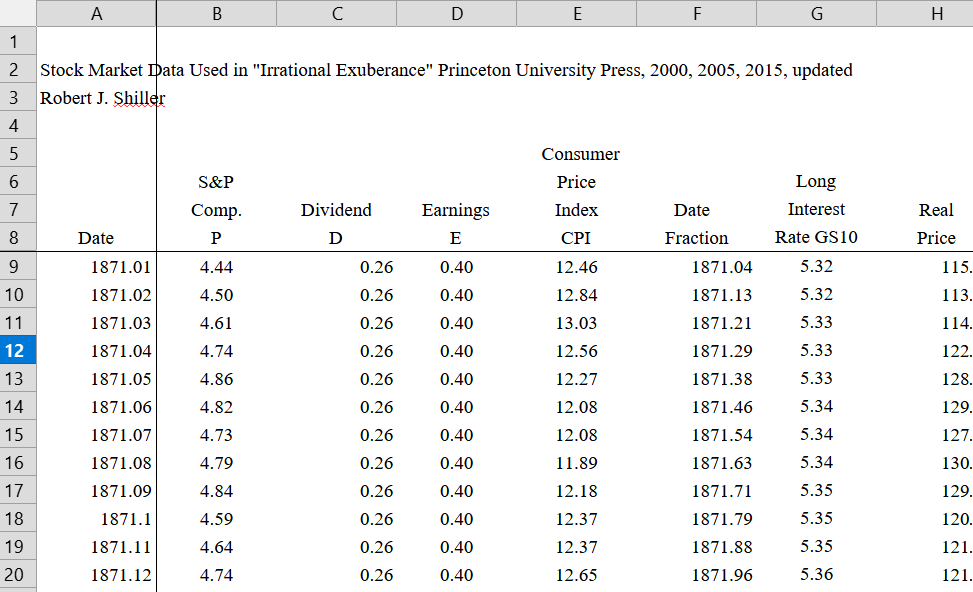
The Shiller dataset as it appears when first downloaded from Yale University
The downloaded file contains monthly stock prices, dividends, earnings data, and the Consumer Price Index starting from January 1871.
Step 3: Extract the Required Columns
Open the downloaded Excel file. You'll see multiple tabs and columns, but Bellavia only needs specific data.
From the Data tab, you need these four columns:
- Column A: Date
- Column E: Consumer Price Index (CPI)
- Column J: Real Total Return Price
- Column S: Real Total Bond Returns
To extract this data:
- Create a new sheet in the workbook
- Copy these four columns to your new sheet
- Use Paste Special > Values to paste as values (not formulas)
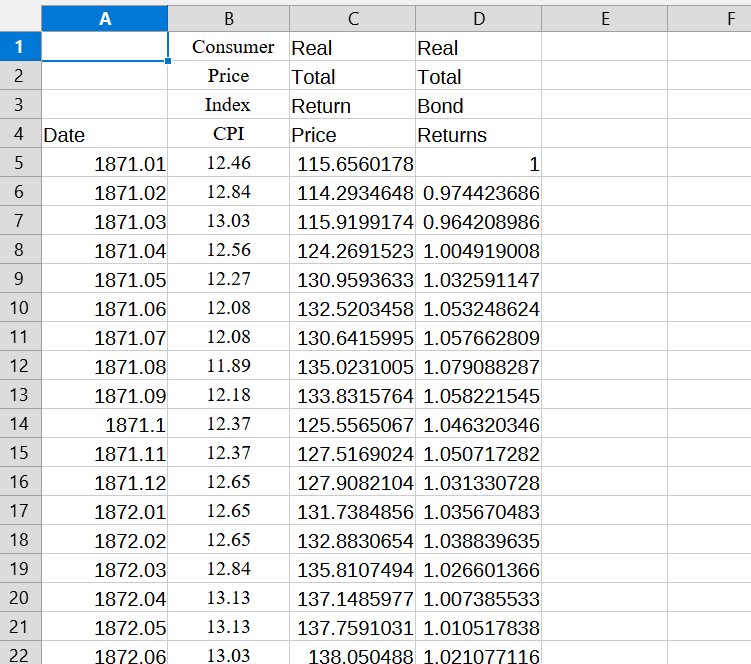
The relevant columns from the Shiller dataset in a separate workbook
Note on Cash Returns: The Shiller dataset doesn't include cash return data. For simulation purposes, you can approximate cash returns as earning interest equal to inflation (effectively zero real return). We'll add this in a later step.
Step 4: Convert to Annual Data
Bellavia uses annual data points, but the Shiller dataset provides monthly data. You need to select one data point per year.
A simple approach is to use January values (December may be a better choice but for our purposes the end difference is small):
- Select all four columns
- Apply an AutoFilter (Data > Filter)
- In the Date column filter, search for
.01 - This displays all January entries (shown as YYYY.01 in the Shiller format)
- Copy all filtered rows
- Paste them into a new location as values
You should now have annual data spanning from 1871 to 2025.
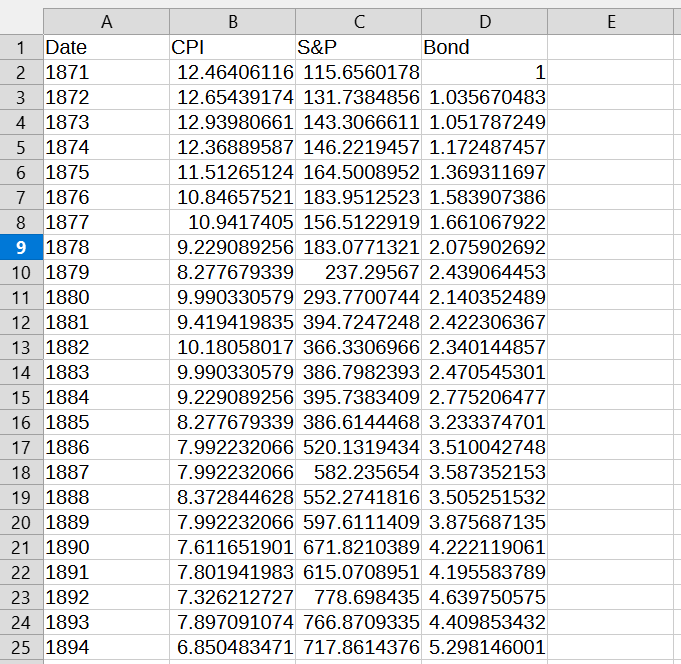
The relevant columns from the Shiller dataset with dates in years
Step 5: Clean Up the Date Format
The Shiller dates are in "YYYY.MM" format, but Bellavia needs just the year:
- Select the Date column
- Use the Excel formula:
=LEFT(Cell, 4)to extract just the year - Copy the formula down for all rows
- Copy and paste as values to replace the original dates
Your Date column should now show: 1871, 1872, 1873, and so on.
Step 6: Add Cash Returns and Rename Columns
Now add the cash returns column and ensure column names match Bellavia's requirements exactly:
- Add a new column for Cash total return index
- Fill it with the value 100 for all rows (representing cash keeping pace with inflation)
- Rename the columns to match these exact names:
- Year (formerly Date)
- Equity_TR (formerly Real Total Return Price)
- Bond_TR (formerly Real Total Bond Returns)
- Cash_TR (your new column with 100 values)
- CPI (formerly Consumer Price Index)
Critical: Column names must match exactly, including capitalization and underscores. The order doesn't matter.
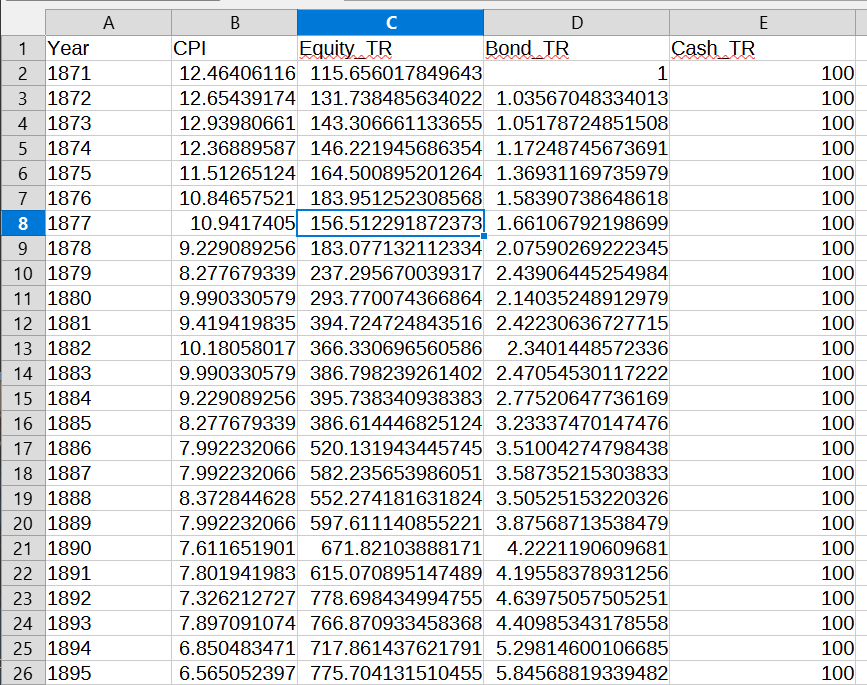
Data before upload
Your final spreadsheet should have five columns with these exact headers and annual data from 1871 to 2025.
Step 7: Save as CSV
Excel files won't work—Bellavia requires CSV format:
- Click File > Save As
- Choose CSV (Comma delimited) (*.csv) as the file type
- Name your file (e.g., "Shiller_Data_1871_2025.csv")
- Click Save
- If Excel warns about features not compatible with CSV, click Yes to continue
Step 8: Upload to Bellavia
Now you're ready to upload your custom dataset:
- Return to Bellavia Settings
- In the Data Management section, find Upload Custom Data
- Click Select Data File (CSV)
- Choose your CSV file
- Enter a display name (e.g., "Shiller Data")
- Select USD - US Dollar ($) as the currency
- Tick the box: My data is in real (inflation-adjusted) terms to match the data format
- (Optional) Add a description like "Robert Shiller data 1871-2025"
- Click Upload Data
Bellavia will validate your data before uploading. If there are any format issues, you'll see specific error messages.
Step 9: Use Your Custom Dataset
Once uploaded, your Shiller dataset is ready to use:
- Go to the Bellavia Home page (main simulator)
- In the Portfolio & Timeline section, click the Equity Index dropdown
- Your custom "Shiller Data" dataset will appear in the list
- Select it and run your simulation
You can now test retirement scenarios across 150+ years of real market history, including all major financial crises, wars, and market conditions.
Data Format Requirements
If you encounter upload errors, verify your CSV meets these requirements:
- CSV format with comma separators
- Exactly 5 columns: Year, Equity_TR, Bond_TR, Cash_TR, CPI
- Between 60-200 data rows (more than 60 years of data)
- Year format: YYYY (e.g., 2024)
- Numeric values should be clean (no commas or special characters)
Conclusion
With the Shiller dataset uploaded, you've significantly enhanced Bellavia's analytical power. You can now run simulations across 150+ years of market history, stress-test your retirement plan against every major economic crisis, and gain confidence that your strategy works in both bull and bear markets.
Ready to run your first simulation with the Shiller data? Head to the Home page and select your newly uploaded dataset from the equity index dropdown.
Frequently Asked Questions
How long does it take to upload Shiller data to Bellavia?
The entire process takes approximately 20-30 minutes, including downloading from Yale, formatting in Excel, and uploading to Bellavia.
Do I need a Premium account to upload custom datasets?
Yes, custom dataset uploads are a Premium feature. You can start a 14-day free trial to test this functionality.
What if I get an upload error?
Verify your column names match exactly (Year, Equity_TR, Bond_TR, Cash_TR, CPI) and you have 60-200 rows of data.
Can I use other datasets besides Shiller?
Yes! Bellavia accepts any dataset in the correct CSV format. You could use international data or other historical sources.
Ready to Run Your First Historical Simulation?
You've just uploaded 150+ years of market history. Now test your retirement plan against every crash, boom, and recovery since 1871.
Start Your Simulation →Free tier available
Discussion (0)
Join the conversation
Log in to commentNo comments yet. Be the first to share your thoughts!